
 Publishing
 Content
A Guide to Link Inventories
A Link Inventory is a named collection of links: the URLs, crawled pages and Google Business Profiles an AutoBuild plans its campaigns from. You create one (or select an existing one) as the first step of starting an AutoBuild and inventories are saved for reuse in later AutoBuilds.
This guide covers what happens on the inventory page itself: choosing what to crawl, reviewing crawled pages, and working with the links table.
Choosing What to Crawl on Large Sites
For sites where a full crawl needs narrowing down, the inventory page shows a Choose folders to crawl panel (marked Needs review). Menterprise scans the homepage and sitemaps to detect the site's folders — you can leave the page while it works.
- Under Folders to include, tick the folders (path prefixes) to crawl. Detected language folders are labelled — useful for skipping translations.
- Select all / Clear toggle everything at once; Re-scan site re-runs detection.
- Click Start crawl.
If no folders are detected, the crawl uses the full site.
Reviewing Crawled Pages
When a crawl finishes, the inventory shows a Review crawled pages panel (marked Needs review) before anything is enriched.
- All pages are selected by default, shown as a folder tree with page counts per folder.
- Uncheck any folders or pages you don't want. Deselected pages are deleted when you continue — the rest are enriched and categorized.
- Click Continue — enrich selected.
The links table
Each inventory lists its links in a table:
- Type: URL, Page (crawled) or GBP
- URL: The link itself
- Title: The page title found during enrichment
- Category: The category assigned during enrichment
- Status: Enrichment state — e.g. Raw before enrichment has run
- Linkable: Whether the link can be used as a link target
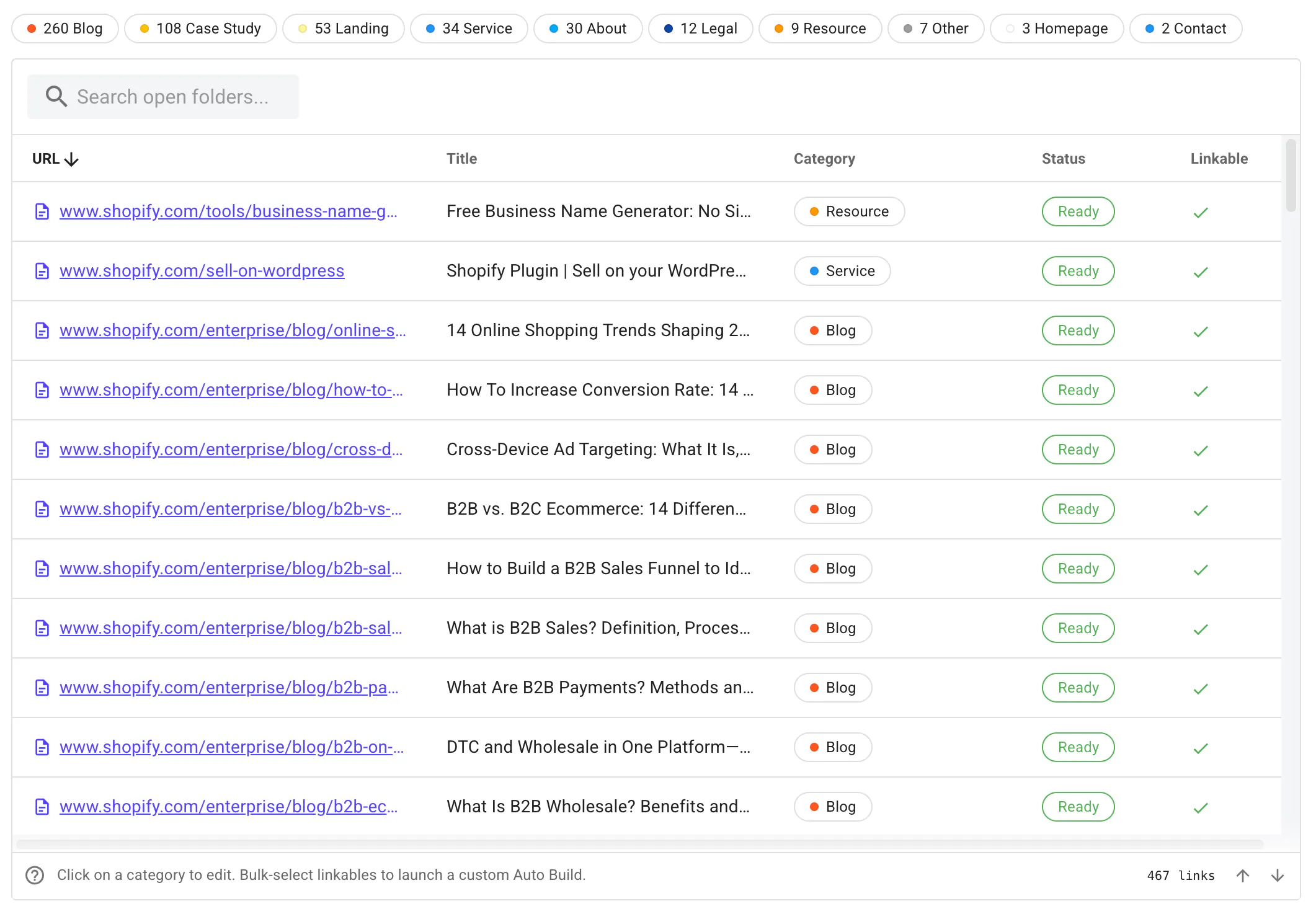
- Show all links toggles the full list.
- GBP rows have a reviews button that opens the profile's Google reviews, which Menterprise has also scraped to include.
- To change a link's category, open Edit category — you can set the category, city/area, and region/state. Category changes only affect new or re-planned Auto Builds, not ones already planned.
When you view an inventory in the context of a Build, extra columns appear showing how each link is used per campaign.
Managing Inventories
The ⋮ menu on an inventory has:
- View — open the inventory
- Rename
- Delete inventory — unavailable while a crawl or enrichment is running
Starting an Auto Build from an Inventory
You can start a Build directly from an inventory — including from a selection of links. Select the links you want, then choose Start Auto Build: campaign planning will use only the selected links, not every row in the inventory.
For the full Build workflow, see Deepdive on AutoBuilds.